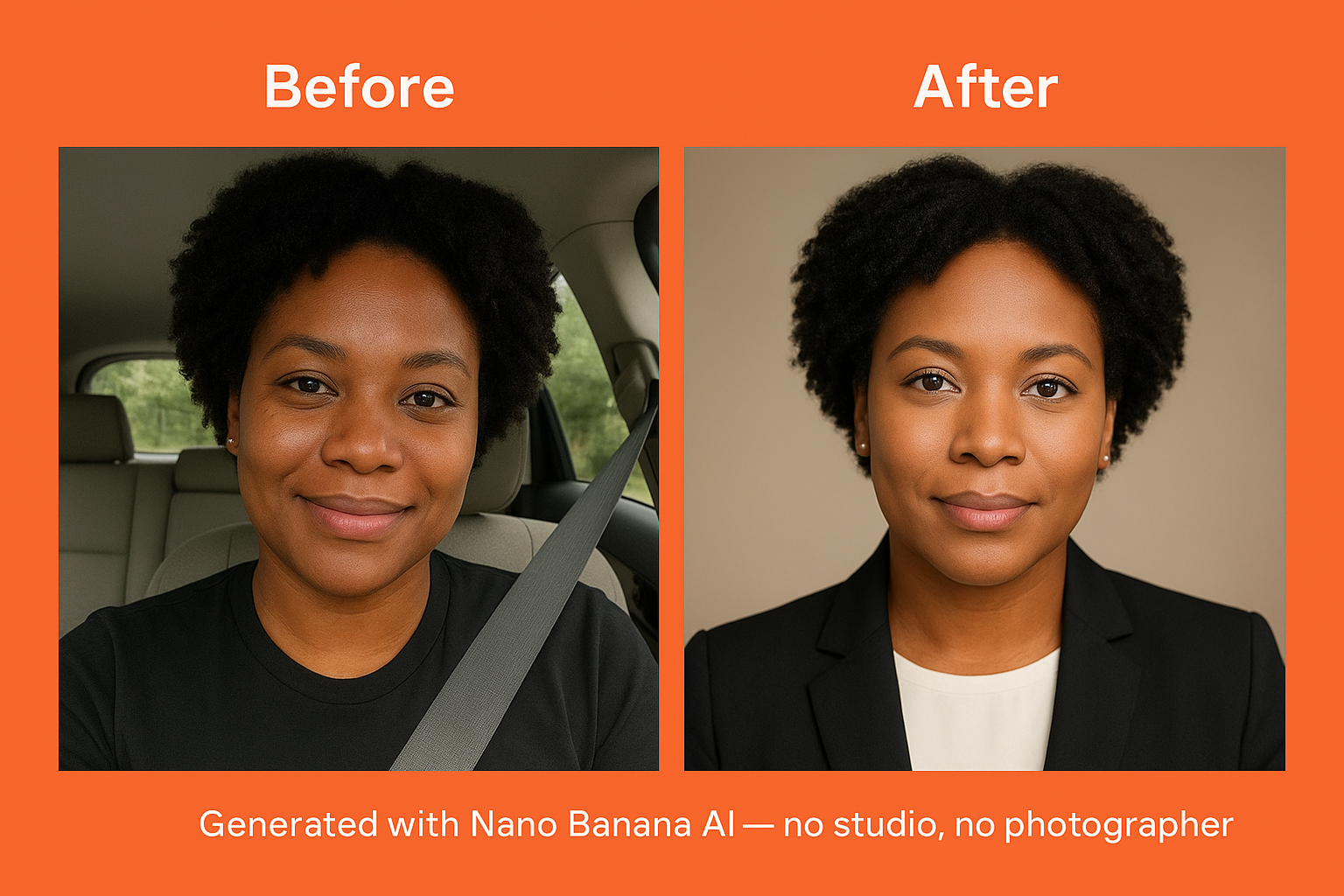
Last week, my jaw dropped when I saw a friend’s new professional LinkedIn photo.
She looked like she had just stepped out of a luxury studio shoot because the lighting was perfect, the background looked clean, and she had that relaxed CEO energy.
So, I did what any curious person would do. I slid into her direct messages on LinkedIn and asked her, “Please, who took this picture?!” And she replied, “Nobody did; I used AI.”
Then I realised we are in a new era in which you don’t need a photographer or a studio, pay high fees, or deal with photoshoot stress to look professional. All you need is a selfie and a free AI tool like Nano Banana, which can be done for free.
No camera flashes, no rented blazers, no sweating under studio lights. Just you, your phone, and a few simple prompts that can turn your photo into something that looks straight out of a corporate campaign.
Currently, everyone is embracing the Google Gemini Nano Banana trend, and this trend is transforming their everyday selfies into scroll-stopping professional headshots.
Brands are even cashing in on this Nano Banana trend by turning simple visuals into brand assets that convert. Check out this article titled The Hidden Nano Banana Strategy DTC Brands Will Pay For and How To Start Today.
Honestly, this is genius because your LinkedIn profile photo serves as a digital handshake. It’s the first thing people notice when they check out your page.
So if you’ve been secretly wishing your picture looked more like “I’m the one for the job”, then this is your sign.
In this guide, I’ll show you how to create professional LinkedIn photos without paying a photographer, as well as the exact prompts that trigger AI to deliver that clean, confident, studio-quality glow-up.
What Makes Professional LinkedIn Photos Stand Out?
- Face and shoulder framing
- Even, flattering lighting
- Background: Neutral or softly blurred.
- Appropriate but approachable attire
- A confident but warm expression.
- Preserve likeness (no excessive editing).
How to Use Nano Banana to Create Your Professional LinkedIn Photos
1. Open Gemini / Nano Banana AI.
2. Upload a selfie/picture of yourself.
3. Pick one of the prompts (below) and paste
4. Then, let AI generate multiple versions for you
5. Pick your favourite and refine with a follow-up prompt
6. Crop & adjust for LinkedIn format
7. Inspect edges, artifacts, lighting, likeness
8. Upload to LinkedIn.
Also, if you’re new to Nano Banana, then this article titled ‘Is the Google Gemini Nano Banana Tool Safe?‘ is a great explainer on how the AI tool works and whether it’s safe to use.
Different Prompts To Use To Create Your Professional LinkedIn Photos
1. Executive Formal Headshot Prompt
“Transform this photo of me into a professional LinkedIn headshot: crisp studio lighting, neutral gray background, formal business suit jacket + collared shirt, slight confident smile, retain my original facial features/do not oversmooth, photorealistic, high resolution, crop to head & shoulders only.”

Note: Use this when you want to send a “corporate CEO / leadership” vibe. The grey background keeps it clean and non-distracting. The “retain facial features” ensures people still recognise you, and your professional LinkedIn photos don’t end up looking like a mannequin’s own.
2. Warm & Approachable Prompt
“Convert this image into a friendly, professional LinkedIn photo: soft, warm lighting; a neutral but warm-toned blurred background (cream/beige); business casual attire; an open and warm smile; preserved facial structure; natural skin texture; photorealistic.”

This works well when your brand/industry values connection (coaching, HR, creative). Warm tones make you appear more friendly and approachable, but keep testing the variations, and don’t let the lighting turn too orange.
3. Monochrome / Black & White Prompt
“Transform my selfie into a high-contrast black-and-white studio portrait: dramatic but clean lighting, minimal background, serious but calm expression, head & shoulders crop, photorealistic, and preserve facial detail.”
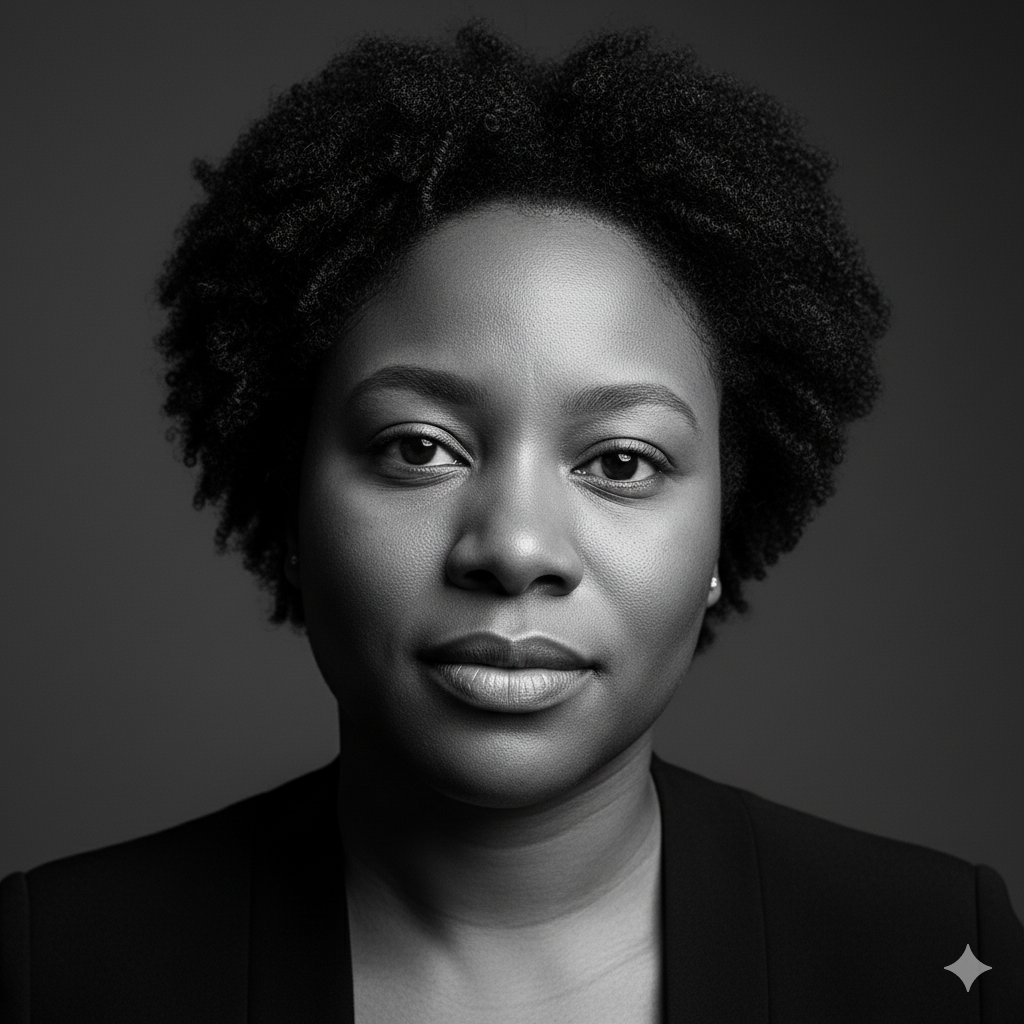
This prompt stands out because there is no colour competition. It is perfect if you want your professional LinkedIn photos to have a bold look, but just ensure your hair, edges, and background contrast stay clear.
4. Smart Casual Business Prompt
“Convert this selfie into a clean LinkedIn headshot: smart casual style (blazer + shirt, no tie), even lighting, neutral blurred background, relaxed smile, preserve facial detail, crop head & shoulders, photorealistic.”

To create your professional LinkedIn photos, this prompt is ideal for technology, startup environments, and creative roles where a full suit feels stiff. You appear professional but not stiff. Remind the AI “blazer + shirt” to avoid dressing you too casually.
5. Bold/High-Impact Prompt
“Transform this photo into a bold, high-contrast professional headshot: crisp lighting, a background with a subtle gradient (dark → light), attire: a light blazer, a strong and confident expression, retained facial structure, photorealistic, and cropped close.”

This is for bosses, thought leaders, and bold personal brands. The gradient background adds depth to your professional LinkedIn photos, but ensure the lighting looks natural and not overly retouched.
6. Clean Minimalist Portrait Prompt
“Change this image of me into a minimalist LinkedIn headshot: white/off-white background, even soft lighting, no distractions, attire: solid color blazer or top, calm smile, preserve facial features, photorealistic.”

Perfect for any industry because the minimalist looks are classic, clean, and professional. However, adjust brightness if necessary.
Tips to Avoid Your Professional LinkedIn Photos From Looking Weird
- Always review multiple outputs and pick the one that closely resembles your appearance.
- If you notice your hairlines, ears, or hands look odd. Use follow-up prompts, like “Fix left ear shape, adjust collar, and reduce shadow.”
- Do not let AI over-smooth your skin. Always include the prompt “preserve facial structure / don’t oversmooth”.
- For skin tone issues, try “adjust warmth / correct skin tone slightly cooler / neutralise background hue”.
You don’t have to rent a studio or hire a photographer to create your professional LinkedIn photos. With Gemini Nano Banana and these 8 prompts, plus your eye for detail, you can transform your selfies into headshots that match your ambition.
Also Read: I Gave ChatGPT and Nano Banana the Same Prompt
Try 2–3 prompts today, pick your favourite, upload it, and watch your professional LinkedIn photos stand out.
